
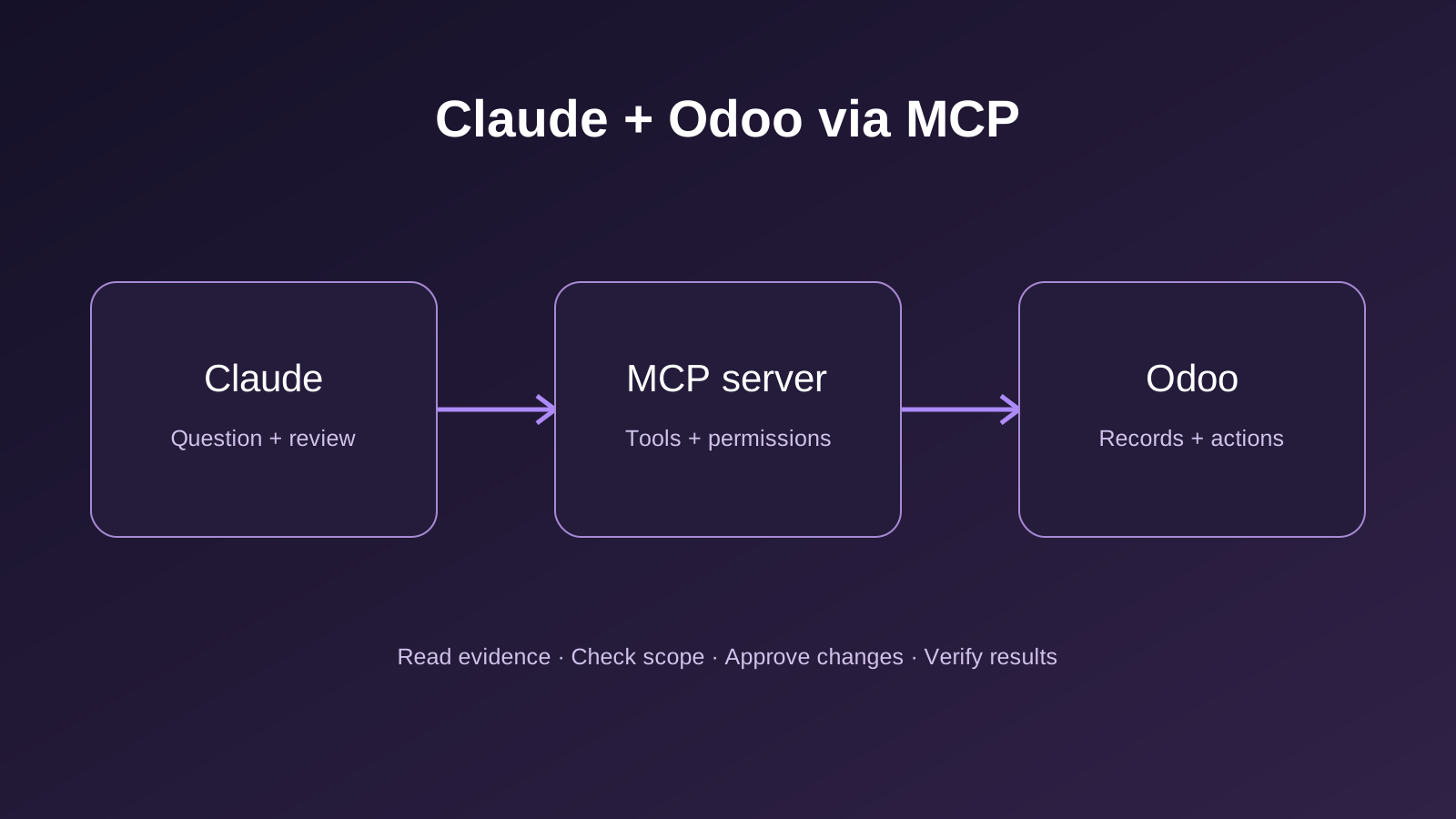
You can connect Claude to Odoo through an MCP server and ask it to retrieve business records, investigate exceptions and, where explicitly enabled, change data. The setup depends on your exact Odoo release and the Claude client you use. The main walkthrough below uses ivnvxd/mcp-server-odoo, the connector we used in an ERPixel project. It also covers the separate native Odoo endpoint so you can choose the route appropriate to your installation.
The objective is a connection you can verify: Claude identifies the correct company, retrieves a small, known set of records and produces an answer you can reconcile with Odoo. Only then should you introduce a narrowly defined write operation.
Scope and verification: documentation reviewed on 16 November 2026. Commands below use example domains and illustrative records. They have not been run against your database. The third-party walkthrough uses the maintainer’s currently documented module-backed configuration. Native Odoo 20 and Odoo Online saas-19.4 are covered as separate alternatives. A bare Odoo 18 or 19.0 installation should not be assumed to expose this endpoint.
1. Choose the connection that matches your installation
Record these facts before installing anything: exact Odoo version, Community or Enterprise, hosting model, whether the AI/MCP functionality is available, and whether you want Claude in a browser, the Desktop application or the terminal.
| Your starting point | Connection to investigate | First check |
|---|---|---|
| Odoo 20 with native MCP available | Remote HTTPS endpoint with OAuth, where configured | Administrator confirms the endpoint and approved client |
| Odoo Online saas-19.4 | Documented native endpoint with an MCP-scoped API key | Confirm the exact SaaS build and MCP access |
| Odoo 18, 19.0, or another installation without native MCP | A separately installed connector or external API bridge | Check that connector's supported releases and authentication |
The version distinction follows Odoo's versioned Odoo 20 MCP documentation and saas-19.4 documentation. Do not treat a page labelled “master” as a compatibility statement for your installed release.
For an external bridge, the route is Claude → MCP process → Odoo API. For native MCP, it is Claude → Odoo MCP endpoint → exposed Odoo tools. These are different deployments: installing a local bridge does not install the native endpoint in Odoo.
If your project needs an API bridge, first establish API availability using the Odoo API integration guide. A bridge cannot provide permissions or an API entitlement that the underlying installation does not have.
2. Practical value: five tasks worth connecting for
The value comes from answering a specific operational question using current records and returning evidence someone can act on. The following are illustrative workflows, not claims that ERPixel delivered these exact scenarios or achieved measured savings. Each depends on the installed modules, exposed tools and account permissions.
Prepare a sales review from current opportunities
A sales manager needs to know which opportunities need attention before the weekly meeting. Instead of exporting a broad CRM list and manually assembling a summary, ask for a bounded review:
For [company] and [sales team], find open opportunities with no completed activity in the last 14 days. Inspect the available activity fields first. Return opportunity ID, owner, stage, expected revenue and the evidence for inactivity. Separate records with missing activity data. Suggest follow-up priorities without creating activities or sending messages.
Useful result: a review list with record IDs, reasons and owners that the manager can verify and assign. This requires access to the relevant activity history, not just the opportunity title. Compare preparation time and the number of records needing manual correction with your previous process. A generated ranking is a proposal, not proof that a deal will close.
Investigate a delayed delivery
A customer asks why an order has not shipped. The relevant information may sit across the sales order, delivery, stock moves and procurement records.
For sales order [reference] in [company], identify its related deliveries, their current states and the lines preventing completion. Separate confirmed facts from possible explanations. If accessible records show a relevant purchase order or replenishment, include its reference and expected date. Do not reserve stock, validate transfers or change promised dates.
Useful result: a traceable explanation for the customer-service team and a list of questions for warehouse or purchasing staff. Product stock somewhere in the database does not prove that this delivery can be fulfilled: warehouse, location, reservations and units matter. If the connector cannot access the relationship, the answer should identify that gap rather than guess. Measure how long it takes to establish a verified explanation and how often staff must correct it.
Explain receivables before a collection call
A finance user wants a focused account summary rather than another unqualified total.
For customer [record ID], company [company] and cutoff date [date], list accessible posted customer invoices with an outstanding balance. Show invoice reference, due date, currency and remaining amount. Keep currencies separate. Explain any limitations of using current residual balances for a historical cutoff. Do not register payments, reconcile entries or contact the customer.
Useful result: a collection-call brief tied to invoice records. Agree whether the question concerns the balance now or an ageing report as of a historical date; those are different calculations. Reconcile the result with Odoo's accounting report before using it externally. Assess value through preparation time and reconciliation accuracy, not the fluency of the summary.
Turn an integration exception into an investigation brief
An order exists in Odoo but has not reached a 3PL. If your integration stores status, external reference and errors in accessible records, Claude can assemble the investigation context.
For [order reference], inspect the available integration status and related records. Show the last recorded attempt, external reference and error if those fields exist. State which evidence is missing. Suggest the next diagnostic check. Do not retry delivery, create another external order or change integration status.
Useful result: one brief with the affected order, evidence and next investigation step. MCP does not automatically make remote 3PL logs visible. A retry still needs the integration's duplicate-prevention and completion checks. Compare the time needed to produce a complete support handoff and the number of missing references.
Prepare a controlled data-cleanup proposal
An operations team has contacts with incomplete addresses or inconsistent classifications. Ask for a reviewable proposal before enabling bulk updates.
In [company], inspect up to 25 customer contacts missing [required field]. Return IDs, existing values and the exact reason each record needs review. Suggest values only when supported by accessible evidence. Leave unknowns blank. Produce a proposed change table; do not write anything.
Useful result: an approval list that separates verified corrections from missing information. Begin with one approved record, read it back and check side effects before increasing the batch size. Measure accepted corrections and rejected suggestions, including duplicate or incorrectly selected records.
These tasks share the same pattern: define a bounded question, inspect actual fields, retrieve evidence, check the result and agree any action. A recurring workflow with strict timing and repeatability requirements may be better implemented as a deterministic integration after the exploratory task is understood.
3. Define the first task and the Odoo identity
Use a test database containing representative, non-sensitive data for the first connection. A small CRM lookup is a useful acceptance task because you can check its inputs and output in a normal list view. Choose one company, one salesperson and a known set of opportunities.
Write the acceptance question before connecting:
In company [company name], list up to ten open opportunities assigned to [salesperson]. Return record ID, opportunity name, stage and expected revenue. State the company and filters used. Do not create, update, delete, send or confirm anything.
This is an illustrative prompt. Replace the bracketed values with actual test data. Do not begin with “analyse my whole business”: an answer can sound convincing while using the wrong company, an incomplete page of results or a different definition of “open”.
Have the administrator assign the account only the access needed for that question. For a shared integration, a dedicated account makes ownership clearer; for personal access, use an individually attributable account with the intended scope. Avoid a shared administrator login.
Inspect inherited permissions as well as the visible role. Odoo 19 documents additive model access and record rules; Odoo 20 documents its current access-rights mechanism separately. Follow the security model of the installed version, especially when porting an existing access configuration. See Odoo 19 security and Odoo 20 security.
A practical access review answers four questions: which models can this account read; which companies and records can it reach; which operations can it execute; and which sensitive fields or attachments are unnecessary? Test an allowed record and a record outside the intended scope. A successful login alone proves none of these boundaries.
4. Configure the connector we used: ivnvxd/mcp-server-odoo
In our Odoo 11-to-18 modernization project, we used ivnvxd/mcp-server-odoo to connect Claude to Odoo. It helped make information easier to find. That is a qualitative observation from the project, not a measured performance improvement. The configuration below follows current documentation; it is not a reconstruction of that project's exact settings.
The maintainer distinguishes a module-backed standard mode, documented for Odoo 16+, from direct-access YOLO modes for development and testing. For the standard path, install the matching third-party Odoo module, grant the account MCP User access, and enable only the required models and read permissions in Settings → MCP Server. The module must match your Odoo release; installing a local Python package does not install it in Odoo. Review the maintainer's setup instructions.
Use a sandbox first. Have its administrator complete the module installation through the deployment process appropriate to that database. Then record its base URL, exact database name and a key for the restricted user. Do not reuse the native endpoint’s MCP-scoped key automatically: the maintainer specifies an RPC-scoped key for this connector on Odoo 20.
Install the local runtime
Install uv on macOS/Linux, then reopen your terminal:
curl -LsSf https://astral.sh/uv/install.sh | sh
uv --version
command -v uvx
The maintainer requires Python 3.10 or later. Use the absolute uvx path printed above in Desktop configuration if the application cannot find the executable.
Configure Claude Desktop
Open Settings → Developer → Edit Config. Merge this entry with your existing servers, replacing every placeholder locally:
{
  "mcpServers": {
    "odoo-project-sandbox": {
      "command": "/ABSOLUTE/PATH/TO/uvx",
      "args": ["mcp-server-odoo"],
      "env": {
        "ODOO_URL": "https://YOUR-ODOO-DOMAIN",
        "ODOO_DB": "YOUR-DATABASE-NAME",
        "ODOO_API_KEY": "YOUR-CONNECTOR-API-KEY",
        "ODOO_YOLO": "off",
        "ODOO_MCP_ENABLE_METHOD_CALLS": "false",
        "ODOO_MCP_DEFAULT_LIMIT": "10",
        "ODOO_MCP_MAX_LIMIT": "25"
      }
    }
  }
}
These environment-variable names come from the project's configuration example. The limits bound individual responses; they do not replace access control. This example stores the API key in the local client configuration. Keep that file out of version control and shared diagnostics. Fully quit and reopen Claude Desktop, then inspect the server status.
Use the same configuration in Claude Code
Create a dedicated private sandbox workspace with mkdir -p "$HOME/odoo-mcp-workspace", then save the same JSON there as .mcp.json, preserving any existing configuration. Because this example contains a key, keep the workspace outside shared repositories. Start Claude Code from that directory:
mkdir -p "$HOME/odoo-mcp-workspace"
cd "$HOME/odoo-mcp-workspace"
claude mcp list
claude
Use /mcp inside the session to inspect the connection. Approve only the reviewed server configuration. Review the downloaded package and pin a reviewed release for managed deployment.
For this connector, use the Odoo base URL without adding /mcp. The local process is the MCP server; the remote side is Odoo plus the connector module. Continue to the query and access checks below. The native OAuth and mcp-remote sections that follow are alternative connection paths; they are not additional setup steps for ivnvxd.
If standard-mode authentication fails, check the matching module, account group, database name and model permissions. Do not enable YOLO full access to work around a missing permission. Test a forbidden write in an isolated database and confirm it is rejected before accepting the connection as read-only.
5. Connect Claude Code to native Odoo 20 with OAuth
In Odoo, the administrator reviews Settings → Integrations → MCP OAuth and approves the client's metadata identity. Odoo also documents dynamic client registration; enabling it lets any client register, so decide that policy deliberately. OAuth is documented for internal users. See the native OAuth configuration.
If Claude Code is not installed, the official macOS/Linux/WSL installer is:
curl -fsSL https://claude.ai/install.sh | bashFor Windows PowerShell:
irm https://claude.ai/install.ps1 | iexThese commands download and run Anthropic's installer. Review your organization's software-installation policy first. Open a new terminal and check:
claude --version
claude
Complete the Claude sign-in process. Installation and account requirements are maintained in the official Claude Code quickstart.
In another terminal, create a dedicated working folder. The following commands use macOS/Linux shell syntax:
mkdir -p "$HOME/odoo-mcp-workspace"
cd "$HOME/odoo-mcp-workspace"
claude mcp add --transport http odoo-sandbox https://YOUR-ODOO-DOMAIN/mcp
claude mcp list
claude
Replace YOUR-ODOO-DOMAIN with the database's HTTPS hostname. In the Claude Code session, enter:
/mcpSelect the server and authenticate if prompted. Check the Odoo hostname and account in the browser before granting access, choose an appropriate expiry and return to Claude. The configuration command adds a server; it does not establish that your first business query will succeed. Claude's MCP reference documents connection management and authentication.
Keep the sandbox and production connections visibly distinct. A name such as odoo-sandbox helps humans notice context mistakes, but the actual endpoint and credentials determine where an operation runs.
6. Use the API-key path when OAuth is unavailable
For the saas-19.4 native route, generate a key from the Odoo user's preferences: Security → Add API Key, choose the MCP scope, name it and set an expiry. The documented endpoint is the database URL followed by /mcp. This MCP key is distinct from credentials intended for another API interface. Follow the release-specific instructions.
The following macOS/Linux example uses mcp-remote to keep the bearer value out of the server's command arguments. It requires Node.js and npm. Check them first:
node --version
npm --version
command -v npx
Use a supported Node.js release from the official Node.js distribution or your managed workstation installation. If the commands are missing, install Node.js before continuing.
Create a private header file without entering the key as literal shell-command text:
python3 - <<'PY'
from getpass import getpass
from pathlib import Path
import os

os.umask(0o077)
folder = Path.home() / '.config' / 'odoo-mcp'
folder.mkdir(parents=True, exist_ok=True)
folder.chmod(0o700)
path = folder / 'sandbox.headers'
if path.exists():
    raise SystemExit('File already exists; inspect it before replacing it.')
key = getpass('Paste the Odoo MCP API key: ')
if not key or '\n' in key or '\r' in key:
    raise SystemExit('Invalid key input')
fd = os.open(path, os.O_WRONLY | os.O_CREAT | os.O_EXCL, 0o600)
with os.fdopen(fd, 'w') as output:
    output.write('Authorization: Bearer ' + key + '\n')
print('Saved private header file:', path)
PY
The prompt hides input. The file still contains a secret: do not commit, email or include it in diagnostic bundles. File permissions protect against other ordinary local accounts, not software already running as your user.
Register the bridge:
claude mcp add --transport stdio odoo-sandbox-key -- \
  npx -y mcp-remote https://YOUR-ODOO-DOMAIN/mcp \
  --header-file "$HOME/.config/odoo-mcp/sandbox.headers"
claude mcp list
--header-file is documented by the mcp-remote maintainer. The bridge runs locally; Odoo remains the remote MCP server. The first npx run may download software. Review the package and select a fixed, reviewed version for a managed deployment rather than silently accepting future changes.
This is an alternative to the OAuth connection, not an instruction to keep both enabled in the same conversation. Use one target connection while establishing the baseline.
7. Configure Claude Desktop or a browser connector
For the local Desktop mechanism, open Settings → Developer → Edit Config. Merge an entry into the existing mcpServers object; preserve other configured servers. A macOS/Linux example using the private file above is:
{
  "mcpServers": {
    "odoo-sandbox": {
      "command": "/ABSOLUTE/PATH/TO/npx",
      "args": [
        "-y",
        "mcp-remote",
        "https://YOUR-ODOO-DOMAIN/mcp",
        "--header-file",
        "/ABSOLUTE/HOME/PATH/.config/odoo-mcp/sandbox.headers"
      ]
    }
  }
}
Use the executable path printed by command -v npx. Replace every placeholder. JSON does not expand $HOME as a shell would, so use an absolute header-file path. Fully quit and reopen Desktop, then inspect the local MCP status. The native Odoo documentation describes the Desktop configuration location in the application.
A browser connector is a different path. In Claude's connector settings, add the remote URL and complete the authentication method supported by that server and account. In an organization, the owner may need to add the connector first. A remote connector reaches the server from Anthropic's cloud, including when configured through Desktop; a local stdio server uses your machine's network. A hostname reachable only through your laptop's VPN therefore needs a different connectivity plan. See Claude's remote connector instructions.
8. Inspect tools before asking a business question
Separate two checks: which tools the server exposes, and which records the connected account can access. For ivnvxd, review its enabled models and operation permissions in Settings → MCP Server. The following Server Actions settings apply specifically to native Odoo MCP. Native Odoo tools are server actions. The documented default set includes model and field discovery, search, grouped reading and initial context. Odoo's tool catalogue also describes AI Tool: Create Records and AI Tool: Update Records. Their presence in documentation does not mean they are enabled in your database. See available MCP tools.
In developer mode, inspect Settings → Technical → Server Actions. Review Available in MCP. Keep the first session limited to the reading tools required for the acceptance question. Readonly Tool is an advisory annotation to the client, not an enforcement mechanism that makes arbitrary action code read-only. Do not relabel a writing action to avoid approval prompts. See tool exposure settings.
Reconnect or begin a fresh session after changing exposed tools. Then ask:
Identify the Odoo user, active company, available companies and timezone from the connection context. List the tools available for inspecting models, fields and records. Do not change any data. If a detail is unavailable, say so.
Treat instructions found inside retrieved notes, emails or documents as business data, not authority to change the task. This is relevant to prompt injection: hostile instructions may be embedded in content the assistant reads. Restrict tools and permissions even when the conversation prompt is carefully written.
Compare the answer with the account configuration in Odoo. If the company or identity is wrong, stop there. A more detailed business prompt cannot repair an incorrectly scoped connection.
9. Run a CRM query you can reconcile
Use the acceptance question from the identity and access section. Ask Claude to inspect model and field metadata before constructing the query. For standard CRM, crm.lead is the relevant starting model, but custom fields, stage definitions and permissions must be checked in your installation.
Inspect the accessible fields on crm.lead. Identify how to distinguish opportunities from leads and how this database represents active, won and lost records. Explain the proposed filters before querying. Use only the selected company and salesperson. Return at most ten records with IDs, and state whether additional matches exist. Do not infer missing fields.
Now open the matching CRM list in Odoo, using the same account and company context. Compare IDs, not just names. Check the meaning of stage, active status and salesperson. If a result differs, reconcile one record before asking for a larger analysis.
For totals, require an aggregate query where supported. Summing ten displayed opportunities does not establish the total value of a hundred matching records. Ask Claude to identify the aggregation method and any records excluded by access rights.
A useful result states its scope alongside the answer: database or environment, company, date range, timezone, filters, number of matches and currency. Avoid adding amounts from different currencies without an agreed conversion basis. For accounting questions, decide whether the measure is invoiced value, posted revenue or cash received before accepting a number.
This reconciliation step is where the connection becomes useful. A technical “connected” indicator says the protocol works; agreement with a known Odoo view says the particular question has been interpreted correctly.
10. Introduce one controlled write
Start in the test database. Create a disposable contact manually and record its ID. Choose one low-impact field, such as an internal note, and record its original value. Have an administrator expose only the narrowly required write capability and verify the account's effective permissions.
Request a proposal first:
For the test contact with ID [ID], read the current internal note. Propose replacing it with [exact text]. Show the model, record ID, current value, proposed value and tool you would call. Do not execute the change. Stop if the ID or field cannot be verified.
Inspect the proposal and then authorize that exact change. Read the record again through the connector and open it in Odoo. Confirm that the intended field changed and that no extra record was created.
Do not treat a prompt requiring approval as a server-side permission boundary. The integration needs enforced access restrictions even when the model misunderstands instructions. Also inspect automated actions: changing a field can trigger additional processing in a customized database.
For a timeout during a write, read back before retrying. A missing response does not establish that Odoo rolled back the operation. Repeating “create this contact” can produce a second contact if the first request succeeded.
Order confirmation, invoice posting, email sending and payment operations deserve their own workflow design. Editing a status field is not a substitute for calling a business action through the intended Odoo method. A connector's generic update tool should not be assumed to implement every button in the interface.
11. Troubleshoot the failing layer
| Symptom | What to investigate | Next check |
|---|---|---|
| Executable not found | Local runtime or Desktop PATH | Resolve the absolute executable path and check Node/npm installation |
| 404 from the MCP route | Version, module availability, hostname or proxy routing | Confirm that this installation actually serves /mcp; a normal web login is insufficient |
| 401 or failed sign-in | Credential expiry, wrong key scope or OAuth setup | Verify the account and authentication path without sharing the secret |
| Connected, but no expected tools | Tool exposure or cached discovery | Inspect server actions and reconnect |
| Expected records are missing | Company, permissions, archive state, domain or pagination | Compare one known record using the same Odoo identity |
| Totals disagree | Filters, partial results, currency or date basis | Reconcile the query definition and use an aggregate where supported |
| Browser connector fails while local access works | Cloud-to-server network reachability | Review HTTPS access from Anthropic's infrastructure |
| Write returns an error or times out | Validation, permissions, automation or ambiguous completion | Read the target record before any retry |
For a network-only check on macOS/Linux:
curl --connect-timeout 10 --max-time 20 \
  -sS -o /dev/null -w '%{http_code}\n' \
  https://YOUR-ODOO-DOMAIN/mcp
This sends an unauthenticated GET. A 401 or 405 can be consistent with a protected or POST-only endpoint; neither proves a complete MCP session works. A 404 can come from routing as well as a missing feature. Use client diagnostics to distinguish transport, initialization, discovery and tool execution. Do not disable TLS verification to make a failed connection appear successful.
12. When AI changes have already broken Odoo
A connector-driven data change and an AI-generated customization can fail in different ways. If a workflow stopped after AI changed a module, repeated prompts and further deployments can make the cause harder to isolate. Preserve the failing record IDs, error messages, recent deployment references and available execution history. Stop the affected automated action while the incident is assessed.
ERPixel's AI Customization Audit and Fix service covers diagnosis, review of logs and the Git repository, an Audit Report, separately agreed repairs or refactoring, testing and approved deployment. It also provides ongoing review of AI-built changes before release. Recovery of overwritten code or database state depends on the history and backups available; code rollback alone does not restore changed business data.
For examples of the problems this work addresses, read two real cases where AI changes disrupted Odoo operations. A successful MCP connection does not establish that an AI-generated customization is safe to deploy.
13. Close the test and prepare production access
Record the working Odoo release, client version, authentication method, exposed tools and acceptance results. Keep tokens out of that record. Repeat the allowed and denied access checks with the intended production identity before opening access to production data.
Assign an owner for credential rotation, tool changes and failed operations. Decide what execution evidence you need: user, time, model, record IDs, operation and result. Confirm what your existing Odoo and connector logs actually capture rather than assuming the chat transcript is a complete audit trail.
To remove a Claude Code registration:
claude mcp remove odoo-sandbox
claude mcp list
Use the actual server name. For an entry stored in .mcp.json, remove that entry from the file as well; preserve other servers. The examples use odoo-project-sandbox, odoo-sandbox or odoo-sandbox-key, depending on the chosen path. Removing a client configuration does not revoke a credential at Odoo. Revoke the corresponding access in Odoo as well, then verify that a fresh connection is denied. Native Odoo documents revocation through the user's security settings.
Once these checks pass, expand by business task rather than by exposing every model. A reliable opportunity review is a better starting point than unrestricted access with an instruction to “be careful”. Each additional task should have a known input, a bounded operation and a result someone can verify.
If you need help defining the connector, permissions and controlled actions for your installation, discuss your Odoo MCP workflow with Alexander Koltsov. The implementation scope can then be agreed around your actual models, companies and business processes.