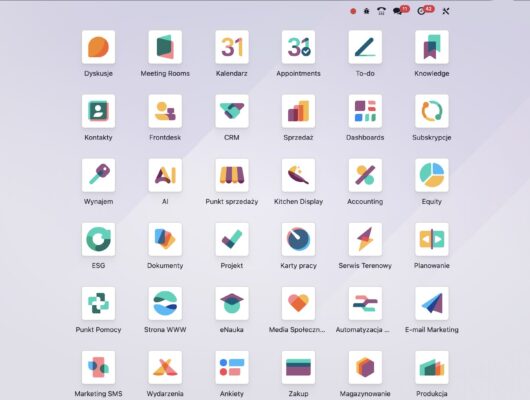


- Key Concepts Behind Odoo 19 Online Appointments
- Why Online Appointments in Odoo Matter: Two B2B Scenarios
- Step-by-Step: How to Create Appointments in Odoo 19 and Link Them to Your Website
- 1. Start from the Website: Add an Appointment Form
- 2. Configure the Appointment Type in the Backend
- 3. Define Availability: When Can People Book?
- 4. Add Smart Questions to Qualify and Prepare
- 5. Automate Communication: Emails and Reminders
- 6. Control Booking Rules, Time Zone, and Constraints
- 7. Test the Full Flow from the Website
- How ERPixel Helps You Turn Odoo Appointments into a Real Journey
- Conclusion: From Simple Form to Complete Appointment System
Your sales team is drowning in back-and-forth emails just to schedule a single demo. Consultants are manually checking calendars, asking for time slots, and updating meetings in different tools. Meanwhile, prospects drop off simply because booking a call is too much work.
Now imagine this instead: a visitor lands on your website, chooses a date, answers a few qualification questions, click “Confirm,” and everything else is automated. Calendar blocked, reminders sent, data stored in your ERP – all in one place.
This is exactly what Odoo’s appointments module delivers. In this article, you’ll see how to create appointments in Odoo 19, configure them properly, and connect them directly to your website so clients can book online without any manual coordination.
Key Concepts Behind Odoo 19 Online Appointments
Before going step by step, it helps to clarify a few core terms you’ll work with in Odoo.
- Appointment Type – A template that defines what the meeting is about, how long it lasts, who hosts it, and the booking rules.
Example: “Free Odoo 19 Consultation – 1 hour online” with one assigned consultant. - Availability – The time windows when customers are allowed to book that appointment type.
Example: Monday–Friday, 9:00–12:00 and 14:00–17:00, shown as bookable slots on the website calendar. - Booking Form Questions – Custom fields you ask visitors to fill in before confirming an appointment.
Example: Phone number, which Odoo modules they use, and a short description of the help they need. - Communication Rules – Automatic messages that Odoo sends when someone schedules, modifies, or cancels a booking.
Example: A confirmation email right after booking, plus an email and SMS reminder a few hours before the meeting. - Booking Options & Constraints – Limits that control how far in advance users can book, how late they can cancel, and whether bookings are auto-confirmed.
Example: Require at least 24 hours’ notice and allow bookings only up to 30 days in advance. - Time Zone Configuration – The reference zone that ensures times look correct on both the customer and internal calendars.
Example: Setting the appointment type to “America/Chicago” so a 10:00 slot matches the consultant’s work hours.
Why Online Appointments in Odoo Matter: Two B2B Scenarios
The ability to quickly create appointments in Odoo 19 and publish them to your website is not just a convenience feature. It directly affects lead conversion, service quality, and internal efficiency.
Example 1: SaaS Company Offering Product Demos
A SaaS vendor runs paid campaigns that drive prospects to a “Book a Demo” page. Without a proper appointment system:
- Leads submit a generic form with no available time slots.
- Sales reps reply manually with suggested times.
- Several emails later, some leads simply stop answering.
Result: high acquisition cost, low conversion, and an unpredictable pipeline. By publishing an Odoo appointment type directly on the demo page, visitors can schedule instantly based on real-time availability. The sales calendar updates automatically, and fewer leads are lost.
Example 2: Consulting Firm Running Free Intro Calls
A consulting firm offers a free 60-minute diagnostic call. They receive dozens of requests every week, and consultants often get double-booked or underutilized due to poor coordination.
Without using Odoo’s capacities and availability rules:
- Two clients may be booked at the same time accidentally.
- Clients schedule outside business hours due to miscommunication.
- Last-minute cancellations are not tracked or reused as free slots.
With a structured Odoo appointment type – one user per slot, strict availability windows, and cancellation rules – the firm protects consultants’ calendars and delivers a smooth experience to clients.
Step-by-Step: How to Create Appointments in Odoo 19 and Link Them to Your Website
The transcript behind this article walks through a real Odoo 19 example: a free Odoo 19 consultation booking page. Below is the same logic, structured as a reusable approach you can apply to other services.
1. Start from the Website: Add an Appointment Form
In Odoo Website, switch to edit mode on the page where you want visitors to book. From the top menu:
- Click New → choose Appointment Form.
- Odoo instantly creates a new appointment type in the backend and links it to this page.
- You’re still designing visually, but the appointment object now exists in the Appointments module.
This top-down flow lets marketing or sales teams first design the landing page and then refine the booking logic behind it.
2. Configure the Appointment Type in the Backend
Open the Appointments module and locate the new appointment type just created.
- Set a clear title, e.g., “Free Odoo 19 Consultation”.
- Define the duration, such as 1 hour, to control the calendar slot length.
- Choose the location, for example “Online Meeting” for virtual calls.
- Under “Book”, assign the user(s) who will host the meeting, linking it to their calendars.
- Use capacity management to allow only one event per slot for one-to-one sessions, or higher for group webinars.
3. Define Availability: When Can People Book?
In the Availabilities tab, create time ranges that reflect your real working hours:
- Choose specific days (e.g., Monday–Friday).
- Define blocks like 09:00–12:00 and 13:00–17:00.
- Repeat or vary these per day if needed.
These settings drive what the website calendar shows. If a slot is not within these windows, it simply won’t be bookable, reducing conflicts and after-hours requests.
4. Add Smart Questions to Qualify and Prepare
In the Questions tab, you design the booking form itself. Typical fields include:
- Phone number (text field, mandatory).
- “Which Odoo module are you using?” (dropdown or multiple choice).
- “How do you need help?” (multi-line text).
You can mark each question as mandatory or optional and choose between text, dropdown, and multiple-choice formats. This turns booking into a mini-qualification form, helping your team prepare before the call.
5. Automate Communication: Emails and Reminders
The Communication tab controls what your customer experiences before the meeting:
- Automatic confirmation email after booking.
- Cancellation email if the appointment is canceled.
- Additional reminders via email a few hours before the meeting.
- Optional SMS reminders for last-minute nudges.
This automation reduces no-shows and saves your team from manually chasing each booking.
6. Control Booking Rules, Time Zone, and Constraints
In Options, you define how strict or flexible your booking engine should be:
- Enable or disable invitations and auto-confirmation.
- Set how far in advance people can schedule (e.g., up to 30 days ahead).
- Specify a minimum notice period (e.g., no same-day bookings).
- Define cancellation windows to avoid last-minute changes.
- Set the appointment time zone, such as “America/Chicago”, so all parties see the correct local time.
These rules ensure that the nice-looking website form doesn’t create operational chaos behind the scenes.
7. Test the Full Flow from the Website
When you’re done configuring, click Go to Website from the appointment type to
see the live booking page:
- Select a date and time – only valid slots show up based on your availability.
- Fill in the questions you configured.
- Confirm the appointment.
Odoo then creates the meeting, blocks the calendar, sends all the relevant emails and reminders, and enforces the booking rules you defined. The website is simply the front end; the Appointments module manages all logic centrally.
How ERPixel Helps You Turn Odoo Appointments into a Real Journey
Knowing how to create appointments in Odoo 19 is only the first step. The real value comes when appointments are fully integrated with CRM, sales pipelines, and service workflows.
As an official Odoo Partner, ERPixel helps companies design end-to-end booking experiences: from website forms and appointment routing to automation rules that create opportunities, log activities, and trigger follow-up tasks. We also help you customize booking questions, multi-user routing, and advanced options so your configuration matches your business model rather than a generic template.
Whether it’s free consultations, paid sessions, internal resource scheduling, or multi-time-zone teams, ERPixel can configure, extend, and automate Odoo Appointments so your website truly works as a 24/7 booking assistant.
Conclusion: From Simple Form to Complete Appointment System
To answer the initial question – how to create appointments in Odoo 19 and connect them to your website – the process is straightforward but powerful: start with an appointment form on the website, configure the appointment type in the backend (availability, questions, communication, and options), then test and refine the full booking flow.
Done right, you replace manual scheduling with an integrated, rule-driven booking engine that feeds clean, structured data directly into your Odoo environment, supporting sales, consulting, and support operations.
If you want to turn your Odoo website into a high-converting booking platform and connect appointments to the rest of your ERP, CRM, and automation, contact ERPixel for Odoo development, implementation, and optimization support.